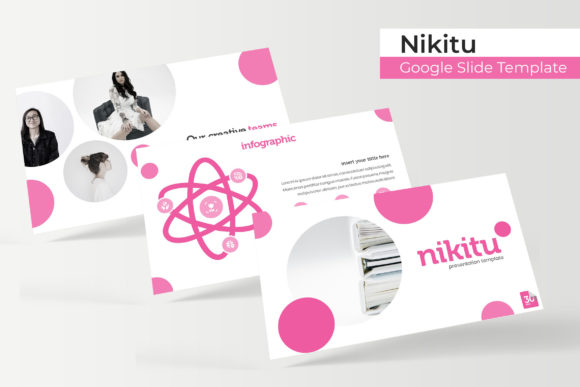
Nikitu Google Slide Template: A Versatile Presentation Solution for Professionals
Presentations remain one of the most effective ways to communicate ideas, pitch projects, or share data. But building a polished deck from scratch takes time, and generic templates often feel impersonal. The Nikitu Google Slide Template offers a middle ground: a structured yet customizable system designed to help users produce professional presentations without starting from a blank slate. With 150 total slides spread across five color variations, it aims to serve a wide range of use cases—from corporate boardrooms to creative portfolios.
This article takes a practical look at what Nikitu offers, who it suits best, and how it holds up in real-world use. The focus is on evaluating its features, usability, and overall value for busy professionals, entrepreneurs, creators, and educators.
What Is Nikitu Google Slide Template?
Nikitu is a presentation template built for Google Slides, though it also comes with PowerPoint (PPTX) files. What sets it apart from simpler templates is its scale and level of detail. It includes 150 slides organized into five distinct color variations, each containing 30 slides. That means a user can pick a color scheme that fits their brand or project and immediately access a full deck structure without rearranging or redesigning slides.
The template includes handcrafted infographics, section break slides, gallery and portfolio layouts, and master slide-based graphics. Every element is resizable and editable, and picture placeholders allow for drag-and-drop image insertion. The files are pixel-perfect, meaning the illustrations and icons maintain crispness across screen sizes and resolutions.
For anyone who has spent hours resizing images or aligning text boxes, the promise of a polished, consistent layout is appealing. But how well does Nikitu deliver on that promise in practice?
Scale and Structure: 150 Slides Across Five Color Variations
The most obvious strength of Nikitu is its breadth. Having 150 slides might sound excessive, but the template avoids redundancy by offering five distinct color palettes—each with 30 slides. This structure serves two purposes. First, it gives users options. A tech startup might lean toward a cool blue or gray scheme, while a creative agency might prefer a warmer or more vibrant palette. Second, it ensures consistency within each set.
Each 30-slide deck includes a logical flow: title slides, content layouts, infographics, section breaks, image galleries, portfolio pages, and closing slides. This means a user can open one of the five PPTX or Google Slides files and already have a complete presentation framework. For time-sensitive projects, this is a significant advantage. You are not building a deck; you are populating one.
That said, the sheer number of slides may feel overwhelming if you only need a handful. However, because the template uses master slides, removing or reordering slides is straightforward. The key is that the variety exists for those who need it, not as a requirement to use everything.
Handcrafted Infographics and Visual Elements
Infographics are a highlight of the Nikitu template. Rather than relying on generic charts or basic shapes, the template includes custom-designed infographic elements that can be edited to display data, timelines, processes, or comparisons. These are not auto-generated from spreadsheet data, but they are built as vector-style graphics that can be recolored, resized, and repositioned without losing quality.
For a marketer presenting survey results or a consultant mapping out a strategic roadmap, these infographics save a considerable amount of design work. They are visually engaging without being distracting, and they follow the same color and typography system as the rest of the deck. This consistency matters when you want the audience to focus on the message rather than the design inconsistencies.
One practical limitation: because these are handcrafted, updating data requires manual editing of text or shapes. If you need live-linked charts or dynamic data feeds, this template will not provide that. But for static presentations where you control the content, the infographics are a solid asset.
Section Breaks, Gallery, and Portfolio Slides
Section break slides are often overlooked in template design, but they play an important role in guiding an audience through a longer presentation. Nikitu includes dedicated section break slides that visually separate topics or chapters. These help maintain narrative flow and give the audience a mental reset between segments.
The gallery and portfolio slides are another practical addition. For photographers, designers, architects, or anyone who showcases visual work, these layouts provide clean grids and image placeholders. The drag-and-drop picture placeholders make it easy to swap in your own images without distorting the layout. The portfolio slides include both grid and single-image spotlight options, so you can highlight key work or show a collection.
For a freelancer pitching to a client or a small business owner presenting a product line, these slides are immediately useful. They are simple, elegant, and do not compete with the content.
Usability, Editing, and Master Slides
A template is only as good as its ease of use. Nikitu is built on master slides, which means changes made to the master layout apply across all slides that use that layout. This is a time-saver if you need to adjust typography, colors, or placement of recurring elements like logos or page numbers.
All graphics and illustrations are resizable and editable. You can change colors, adjust sizes, and swap out icons. The template comes with five PPTX files and five Google Slides options, each with a different premade color. A readme file explains the fonts used, and free font download links are included. This reduces the guesswork when preparing a presentation for team collaboration or client review.
One potential downside: while the template is editable, users with limited design experience may still need a short learning curve to understand master slide editing versus slide-level editing. However, the included documentation covers the basics, and most users familiar with Google Slides or PowerPoint will adapt quickly.
Picture placeholders are a small but important detail. Instead of cropping images manually and hoping they fit, you drag a photo into the placeholder, and it automatically adjusts to the frame. This keeps image proportions consistent across the deck, which is a hallmark of professional design.
Who Benefits Most from Nikitu?
Given its structure and features, Nikitu suits a fairly broad audience, but some groups will find it particularly valuable.
Professionals and corporate teams who need to produce regular presentations for internal updates, client pitches, or conference talks will appreciate the consistency and the range of color options. Having five color variations means you can align the deck with existing brand guidelines without customizing from scratch.
Entrepreneurs and small business owners often wear multiple hats, and presentation design is rarely a priority. Nikitu offers a quick path to a professional-looking deck for investor meetings, product launches, or partnership proposals. The portfolio and gallery slides are especially useful if your business relies on visual work.
Marketers, creators, and freelancers who produce content for social media, webinars, or client deliverables will find the infographics and section breaks useful. The template works well for case studies, service overviews, and brand presentations.
Educators and trainers can use the structured layout for course materials, workshop decks, or academic presentations. The clean typography and visual hierarchy help keep students focused.
For anyone working in a setting where presentations are frequent and design time is limited, Nikitu provides a reliable starting point.
Strengths and Considerations in Real-World Use
In practice, the Nikitu template performs well for its intended purpose: delivering a complete, professional presentation framework that requires minimal customization before use. The handcrafted infographics are a standout feature, as they look more polished than default template graphics. The five color variations offer genuine flexibility, and the master slide system ensures branding consistency.
On the practical side, the inclusion of both Google Slides and PowerPoint formats means you are not locked into one platform. The free font links are a thoughtful addition, preventing font mismatch issues when opening the file on different devices.
However, there are limitations worth noting. The template is not a data-visualization tool. Charts and graphs are manually created, so if you need live data linking or complex charting, you will need to supplement the template with other tools. Also, the preview images show photographs for illustration, but no stock photos are included. You provide your own images. This is standard practice for templates, but it is worth being aware of if you expect ready-made imagery.
Another practical point: with 150 slides, you might never use all of them. But having options means you can pick and choose the layouts that fit your content rather than forcing content into a limited set of slide types. This selection process itself can improve the quality of your presentation by encouraging you to think about structure and flow.
Long-term value depends on how often you create presentations. If you produce decks weekly or monthly, Nikitu pays for itself quickly in time saved. If you present only once or twice a year, a simpler template might suffice. But for those who value consistency and professional design, the investment is reasonable.
Practical Recommendations for Getting the Most Out of Nikitu
To maximize the template's usefulness, consider these approaches.
First, decide on a color variation that matches your brand or the tone of your presentation before you start adding content. Changing colors mid-process is possible but can introduce inconsistencies if you are not careful. The five premade colors cover neutral, cool, warm, and bold options, so there is likely a palette that fits.
Second, use the master slides to set global elements like your logo, fonts, and accent colors early. This ensures that every slide you add will automatically follow the same style, saving you from manual adjustments later.
Third, take advantage of the portfolio and gallery slides if your work includes visuals. Drag-and-drop image placeholders make this simple, and the result looks curated rather than cluttered.
Fourth, if you are presenting to a client or stakeholder who values uniqueness, consider mixing slide types from different color variations. While each set is cohesive, a thoughtful combination can create a custom feel while maintaining professional consistency.
Finally, review the infographic slides for data-heavy sections. Replacing bullet points with a well-designed infographic can make your point more memorable and visually engaging.
Final Observations
Nikitu Google Slide Template addresses a common need: producing a polished, well-structured presentation without the time investment of custom design. Its 150 slides, five color variations, handcrafted infographics, and master slide system offer genuine utility for professionals who present regularly. The template is not a magic solution—it still requires good content and thoughtful editing—but it removes the friction of layout and design decisions.
For entrepreneurs, marketers, educators, freelancers, and corporate teams, Nikitu provides a solid foundation that can adapt to different contexts. It is especially useful for those who value consistency, visual appeal, and efficiency. If your presentations matter to your work, having a reliable template like Nikitu is a practical investment.