GrozA PowerPoint Template: Streamline Your Presentation Workflow with 150 Adaptable Slides
Whether you are preparing a client pitch, an internal training module, a marketing deck, or an online course, the quality of your slides directly influences how your message is received. The GrozA PowerPoint Template offers a structured yet flexible foundation that fits into a wide range of presentation workflows. With 150 total slides organized across five premade color variations, this template is designed for professionals, creators, educators, and entrepreneurs who need to produce consistent, visually appealing presentations without starting from scratch each time.
Understanding the GrozA PowerPoint Template and Its Role in Your Process
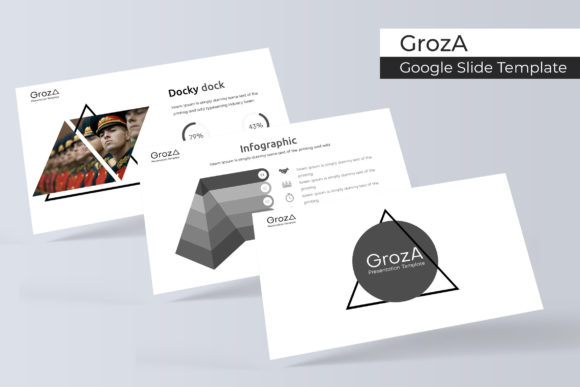
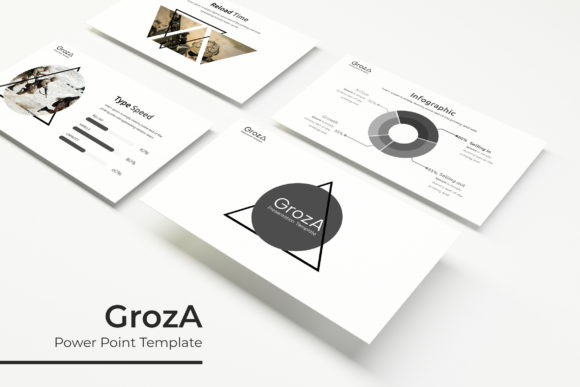
At its core, the GrozA template is a complete PowerPoint framework that includes 30 slides per color theme, resulting in 150 unique slide layouts. Each set covers the essential sections you typically need: title slides, section breaks, content layouts, infographic panels, gallery and portfolio slides, and closing pages. The five color variations let you select a palette that aligns with your brand, audience, or project tone without manually adjusting colors across dozens of slides.
The template fits naturally into a preparation-to-delivery workflow. Before you start building a presentation, you can choose the color variation that best suits your context. During the creation process, you drag and drop your own images into the picture placeholders, edit text directly on master slides or individual layouts, and resize or recolor graphics without breaking the design. After the presentation is ready, the same template can be reused for future projects by simply swapping content and adjusting colors, saving hours of repetitive design work.
Before the Project: Planning and Preparation
When you begin a new presentation project, consider the GrozA template as your starting point rather than a final product. Open the five PPTX files and preview the color options. For example, if you are preparing a quarterly business review, a neutral or professional color scheme may work best. For a creative portfolio or a product launch, a bolder variation might be more appropriate. The readme file included with the template lists the fonts used, with links to download them for free. Download and install these fonts before you start editing to ensure your text displays exactly as intended.
Because the template is based on master slides, you can change the global font or color scheme in just a few clicks. This kind of upfront planning allows you to maintain brand consistency across multiple presentations while still benefiting from handcrafted layouts.
During the Presentation Creation: Efficient Assembly
The real time savings happen when you begin populating the slides. Use the drag-and-drop picture placeholders to insert your own images. There is no need to manually crop or resize photos; the placeholders automatically adjust while preserving the slide’s proportion and harmony. For portfolios or client galleries, the dedicated gallery and portfolio slides let you showcase multiple images in a clean grid without layout shifts.
If your presentation includes data or process steps, the handcrafted infographic slides are ready to use. You can edit the charts, icons, and flow diagrams directly in PowerPoint. Because all graphics are resizable and editable, you can scale elements up or down to fit your content without losing pixel quality. Section break slides help you divide your deck into logical chapters, making it easier for your audience to follow the narrative. Inserting a section break after every major topic gives the presentation a clear structure and provides natural pauses for discussion or questions.
After the Presentation: Refinement and Reuse
Once your slides are filled with content, review the deck holistically. Because the color variation is consistent across all 30 slides, you only need to check a few key screens to ensure nothing looks out of place. The master slide structure means that if you decide to tweak a background element or adjust the position of a footer, you make the change once and it applies everywhere. This makes last-minute adjustments fast and reliable.
After you have delivered the presentation, you can archive it and reuse the same template for next week’s project. Simply create a copy of the PPTX file, choose a different color variation, and replace the content. Over time, you build a library of visually consistent decks that all retain the same professional quality.
Practical Implementation Tips and Best Practices
- Select the right color variation early. If you are working on a series of presentations for the same client or campaign, stick with one color theme to reinforce brand recognition. The five premade colors cover a range from corporate blues and grays to warmer tones, so you can match the mood of the content.
- Use master slides for global edits. Before you start typing text, open the slide master view and replace placeholder text with your own headers or footnotes. This ensures every slide inherits those elements automatically, reducing manual repetition.
- Leverage the infographic slides for data-heavy content. Rather than creating charts from scratch, duplicate the infographic layouts and modify the shapes, text, and colors. The pixel-perfect illustrations ensure that even after scaling, the graphics remain sharp.
- Combine section breaks with gallery slides for portfolio presentations. For example, if you are a designer or photographer, use a section break to introduce a project category, then use the gallery layout to display multiple images. The drag-and-drop placeholders make it easy to swap out visuals for different clients.
- Check font compatibility. Since the template uses specific free fonts, install them before editing. If you need to share the file with collaborators, include the font link from the readme so everyone sees the same design.
Ensuring Consistency and Quality Control Across Presentations
One of the biggest challenges in presentation creation is maintaining visual consistency, especially when multiple people contribute to a deck. The GrozA template addresses this by providing a structured set of slides that follow the same design language. The five color variations are carefully balanced so that text, background, and accent colors work together. When you stick to the provided layouts and placeholders, you avoid the common pitfalls of misaligned elements, mismatched fonts, or inconsistent spacing.
For quality control, review the slide master after any changes. Because the template is built on master slides, unintended edits to individual slides are less likely. If you need to enforce a corporate template across your team, you can set up the color variation you want and share the PPTX file as a starting point. This way, everyone uses the same master slides, resizable graphics, and placeholder positions, resulting in a uniform final product.
Long-Term Value and Reusability
The GrozA template offers more than a one-time solution. With 150 slides total across five colors, you effectively own a small library5 PPTX files that you can adapt for different occasions. The widescreen format (16:9) works well for modern projectors and screens, so your presentations will look current for years. Every graphic and infographic is editable, meaning you can update data, swap icons, or resize elements as your content evolves.
If your branding changes over time, you can modify the color scheme using PowerPoint’s theme color tools. Since the template is built on standard slide masters, you are not locked into the original five colors. You can create your own custom theme and apply it across all slides in minutes. This flexibility ensures that the template remains useful even as your visual identity shifts.
Additionally, the placeholder methodology means you never have to worry about image alignment again. The drag-drop functionality works with any photo format (JPEG, PNG, etc.), and the placeholders are designed to maintain aspect ratios. For teams that produce regular reports, newsletters, or training decks, having a reliable template like GrozA reduces friction and speeds up the entire content creation cycle.
One important note: the photographs and pictures shown in the preview are for illustration only and are not included in the purchase. However, the picture placeholders are ready to accept your own images. Combine the template with your photo library, stock images, or client assets to create presentations that look custom-made for each project.
By adopting the GrozA PowerPoint Template as part of your regular workflow, you move away from starting each deck from scratch and instead focus on the content that matters. The handcrafted infographics, section breaks, gallery slides, and pixel-perfect illustrations give you a professional foundation without requiring advanced design skills. Whether you are an educator preparing lesson materials, a marketer building campaign decks, or a freelancer showcasing your portfolio, this template helps you deliver consistent, polished presentations with less effort and more control.