Outline Power Point Template – A Complete Guide to Features, Versatility, and Real-World Use
Presentations remain one of the most effective ways to communicate ideas, pitch projects, or share data. However, building a deck from scratch takes time, and inconsistent design can distract from your message. This is where a well-structured template makes a real difference. The Outline Power Point Template is built to address exactly that challenge—offering a flexible, color-customizable system that lets you focus on content rather than formatting. In this article, we walk through its core features, practical applications, strengths, and limitations so you can decide if it fits your workflow.
What Makes the Outline Power Point Template Different?
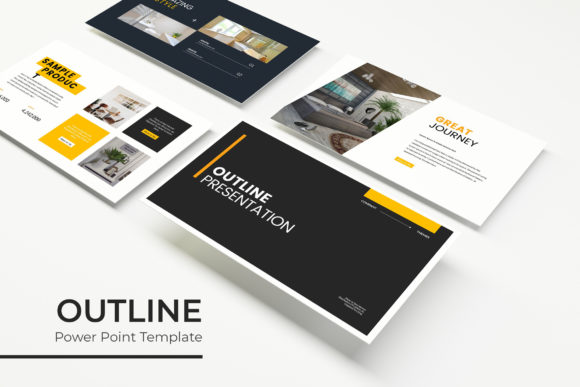
At first glance, the Outline Power Point Template may seem like another slide collection, but its structure sets it apart. It includes 150 total slides organized across 5 premade color variations, with 30 slides per template. Each color scheme is consistent throughout the deck, meaning you don’t have to worry about mismatched tones or spending hours adjusting hues.
The template relies on Master Slides, which means any edit you make to a parent slide automatically updates all child slides. This is especially useful when you need to apply a global change, such as updating a logo, adjusting a footer, or modifying a font style across the entire presentation. Instead of editing each slide individually, you change one master and the rest follows.
Handcrafted Infographics and Section Breaks
One of the more notable features is the inclusion of handcrafted infographic slides. These are pre-designed data visualizations that allow you to present statistics, timelines, or comparisons without needing to build graphics from scratch. They are resizable and editable, so you can tweak them to match your specific numbers without worrying about breaking the layout.
Additionally, the template includes section break slides. These act as visual dividers between major parts of your presentation, helping the audience mentally transition from one topic to the next. This is a small detail, but it greatly improves the flow of longer decks, such as annual reports or training modules.
Who Can Benefit from Using This Template?
The Outline Power Point Template is not limited to a single profession. Because of its modular design and multiple color options, it works well across different contexts. Here are a few groups that may find it especially useful:
- Business owners and entrepreneurs – Pitch decks, investor presentations, and company overviews benefit from the clean, consistent layout.
- Marketing professionals – Campaign reports, strategy overviews, and portfolio slides can be built quickly using the gallery and portfolio slide templates.
- Educators and trainers – Section breaks and infographic slides make it easier to structure lectures or training materials.
- Creative professionals – The pixel-perfect illustrations and drag-drop picture placeholders allow designers to showcase work without spending time on layout.
- Freelancers and consultants – When you need to deliver a professional deck on a tight deadline, having 150 slides at your disposal saves hours of work.
5 Premade Colors with 30 Slides Each
The five color variations are not just palette swaps—each one is applied consistently across all 30 slides, including backgrounds, headings, icons, and accent elements. This means you can choose a color scheme that aligns with your brand or the tone of your message without needing to adjust every element manually. For example, a conservative financial report might use a muted blue scheme, while a creative portfolio could lean into a warmer or bolder palette.
Drag-and-Drop Picture Placeholders
One of the more practical features is the picture placeholder system. Instead of inserting an image and then resizing it to fit a specific frame, you simply drag and drop your image into the placeholder. The template automatically adjusts the image to the correct dimensions. This reduces friction when working with multiple images and ensures a uniform look across slides.
Resizable and Editable Graphics
Every graphic, icon, and illustration in the Outline Power Point Template is built using vector-based shapes. This means you can resize them without losing quality. Whether you need to enlarge an infographic for a presentation screen or shrink it for a printed handout, the sharpness remains intact. You can also change colors, adjust line thickness, or move elements freely.
Gallery and Portfolio Slides
For those who need to showcase work—whether it’s design projects, photography, or case studies—the template includes dedicated gallery and portfolio slides. These are pre-structured with multiple image placeholders and captions, so you can present a visual story without spending time on alignment.
What Works Well
- Consistency across slides – Because the template uses Master Slides, your deck will look unified even after heavy editing.
- Time savings – With 150 slides already built, you rarely need to create a slide from scratch. You simply duplicate and adjust.
- Color flexibility – Having 5 premade colors means you can quickly switch the entire look of your deck without rebuilding it.
- No design skills required – The templates are designed to be professional out of the box, so even if you're not a designer, your presentation will look polished.
- Free font links included – The package includes a Readme First file with links to download the recommended fonts. This ensures your text renders exactly as intended.
What to Keep in Mind
- Images are not included – The preview pictures in the template are for illustration only. You will need to supply your own photographs or graphics.
- Learning curve with Master Slides – If you are new to PowerPoint, understanding how Master Slides work may take a few minutes of practice. Once you grasp it, editing becomes much faster.
- Limited to PowerPoint – The template is delivered in PPTX format, so it works best within Microsoft PowerPoint. If you primarily use Google Slides or Keynote, you may need to convert the file, which could affect some formatting.
Scenario 1: A Business Pitch
Imagine you are preparing an investor pitch. You have 20 minutes to explain your business model, traction, and market opportunity. Using the Outline Power Point Template, you can quickly select a color scheme that aligns with your brand. The section break slides help you separate your problem statement, solution, market size, team, and financials. The infographic slides allow you to present growth metrics cleanly, and the portfolio slide can showcase your product screenshots or customer logos.
Scenario 2: A Training Module
As a corporate trainer, you need to deliver a half-day workshop on communication skills. With 30 slides per template, you have enough room to cover multiple modules without running out of slide variety. You can use the section breaks to separate each module, and the infographic slides to summarize key frameworks. The drag-drop picture placeholders let you insert team photos or diagrams quickly.
Scenario 3: A Creative Portfolio
A freelance graphic designer wants to present their work to a potential client. The gallery and portfolio slides in the template allow for a clean, visual-heavy layout. The designer can drag and drop their best pieces into the placeholders, add captions, and present a professional portfolio in minutes. The pixel-perfect illustrations ensure that even on large screens, the visuals remain crisp.
How to Evaluate If This Template Suits Your Needs
Not every template works for every situation. Here are a few questions to help you decide whether the Outline Power Point Template is the right fit for your next presentation:
- How much time do you have? – If you need a deck in a few hours, the 150-slide library gives you a strong head start.
- How important is brand consistency? – If you need to match specific brand colors, the 5 premade options provide a solid base, but you may need to do minor adjustments.
- Do you use PowerPoint regularly? – The template is optimized for PPTX, so regular PowerPoint users will get the most out of it.
- Do you need infographics? – If data visualization is a big part of your presentation, the handcrafted infographic slides are a valuable asset.
- Are you comfortable with Master Slides? – A little time invested in learning Master Slides pays off quickly, but if you prefer a simpler drag-and-drop system, the template still works without diving into masters.
Practical Tips for Getting the Most Out of the Template
- Start with the Readme First file – It contains the font links and basic setup instructions. Skipping this step may lead to font mismatches.
- Choose your color scheme early – Switching colors mid-project can cause inconsistencies. Decide on the look before you start populating slides.
- Use section breaks intentionally – They are not just decorative; they help your audience follow the structure of your talk.
- Customize the master slides first – Add your logo, adjust the footer, and set your preferred fonts at the master level. This will save you from editing every slide individually.
- Duplicate slides instead of building new ones – The template has 30 slides per color, but you can duplicate any slide to create more without losing consistency.
Final Thoughts
The Outline Power Point Template is not a magic solution that writes your content, but it does remove a significant amount of design friction. With 150 slides, 5 color variations, handcrafted infographics, and master-slide-based editing, it gives you a solid foundation to build professional presentations efficiently. Whether you are a business owner, a marketer, an educator, or a creative professional, the template offers practical value—especially if you regularly produce decks and want to maintain a clean, consistent look.
At the end of the day, the best presentation tool is the one that lets you focus on your message. If the Outline Power Point Template helps you spend less time on formatting and more time on storytelling, it is worth considering for your next project.