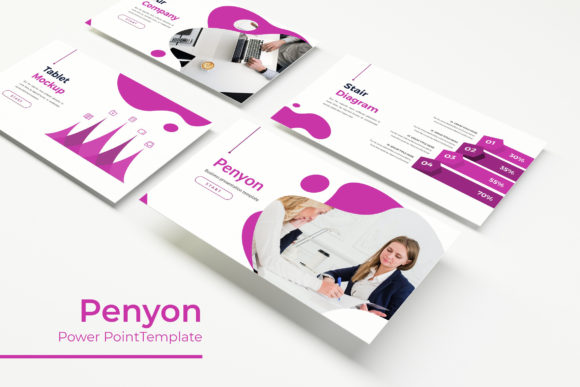
Penyon Power Point Template: A Versatile 150-Slide Presentation Solution
Creating a compelling presentation often feels like a balancing act between design, structure, and content. You need slides that communicate clearly, look professional, and adapt to different contexts without requiring hours of manual adjustment. The Penyon Power Point Template attempts to solve this challenge by offering a comprehensive slide library with thoughtful variations built around handcrafted infographics and flexible layouts. Whether you're preparing a client pitch, an internal training deck, or a portfolio showcase, understanding what this template offers can help you decide if it fits your workflow.
What Makes the Penyon Template Stand Out?
At its core, the Penyon Power Point Template provides 150 total slides organized across 5 premade color variations, with 30 slides per template. This structure means you're not stuck with a single look. Instead, you can choose a color scheme that aligns with your brand, project theme, or audience expectation without starting from scratch each time.
The template is built on master slides, which is a practical advantage. Master slides allow you to make global changes—adjusting fonts, colors, or background elements—across all slides simultaneously. This feature alone can save significant time during revisions, especially when working with teams or under tight deadlines.
Handcrafted Infographics and Visuals
One of the more notable aspects of this template is the inclusion of handcrafted infographics created directly in PowerPoint. Instead of relying on static images or external tools, these infographics are native PowerPoint objects. You can resize, recolor, and reposition each element without losing quality. This is particularly useful when you need to adapt a data visualization to match your exact narrative flow.
The template also includes pixel-perfect illustrations, which means the design elements were created with careful attention to alignment and proportion. While the term "pixel-perfect" is more commonly associated with web design, in this context it indicates that the visual components are crisp, consistent, and ready for high-resolution displays.
Section Break Slides and Portfolio Galleries
Presentations often benefit from clear structural cues that guide the audience through different topics. The section break slides included in Penyon help separate major sections of your deck, providing a natural pause or transition. This is especially valuable in longer presentations where maintaining audience attention requires deliberate pacing.
Additionally, the gallery and portfolio slide layouts are designed to showcase images, projects, or case studies in a visually organized manner. For professionals in creative fields, consulting, or product development, these slides offer a ready-made framework for presenting work samples without spending time on custom layout tweaks.
Real-World Applications and Who Benefits
The versatility of the Penyon Power Point Template makes it suitable for a wide range of users and scenarios. Below are a few examples of how different professionals might use this template effectively.
Business Consultants and Strategists
When presenting market analysis, strategic roadmaps, or process improvements, clarity is paramount. The template's resizable and editable graphic placeholders allow you to insert charts, diagrams, and frameworks that support your argument. The section break slides can mark distinct phases of your analysis, helping clients follow your logic step by step.
Creative Professionals and Designers
For those building a portfolio or pitching creative concepts, the gallery and portfolio slides provide a clean, consistent framework for displaying work. You can drag and drop images into the picture placeholders, and the layout automatically maintains alignment. The five color variations let you match the presentation to your personal brand or the tone of the project.
Educators and Trainers
Training materials often require a balance between text-heavy slides and visual breaks. The handcrafted infographics can simplify complex concepts, while the master slide structure ensures that all training modules share a consistent look. This reduces the cognitive load for learners, who can focus on content rather than navigating disparate slide designs.
Entrepreneurs and Small Business Owners
When resources are limited, having a drag-and-drop template with prebuilt layouts can accelerate the creation of investor decks, product launches, or team updates. The 5 PPTX files included (one for each color variation) mean you can switch between professional blue, warm orange, neutral gray, or other tones depending on the message you want to convey.
Practical Features Worth Noting
Beyond the slide count and color options, several features contribute to the template's day-to-day usefulness.
Picture Placeholder and Drag-Drop Ease
The template uses picture placeholders that accept images via drag and drop. This eliminates the need to manually resize or crop photos each time you insert one. The placeholder maintains the intended aspect ratio and positioning, so your visuals remain consistent across the entire deck.
Resizable and Editable Graphics
All graphic elements are built as PowerPoint shapes or grouped objects. You can scale them up or down, change colors, and adjust transparency without pixelation or distortion. This is particularly helpful when you need to emphasize a specific data point or adapt an infographic to a different slide size.
Based on Master Slides
Working from master slides means that any global changes—such as updating the company logo, changing the font family, or adjusting the background—apply automatically to all slides that use that master. This is a significant time-saver during the final stages of presentation development when consistency matters most.
What’s Included in the Package
- 5 PPTX Files – One for each of the 5 premade color variations.
- 5 PPTX Widescreen – All files are formatted in widescreen (16:9) aspect ratio, suitable for modern displays and projectors.
- 5 Premade Colors – Each color variation contains 30 slides, totaling 150 slides across the full set.
- Readme First – A document that explains how to install fonts, navigate the template, and make the most of the features.
- Font Used Free Download Link – The specific fonts used in the design are available for free download, ensuring your final presentation matches the preview exactly.
It is worth noting that all photographs or pictures used in the preview are not included in the template files. They are intended for illustration purposes only. You will need to supply your own images or source them separately.
Strengths
- Volume of Content: With 150 slides, you have a substantial library to draw from, reducing the need to create new layouts from scratch.
- Color Flexibility: Five distinct color schemes give you options without requiring manual recoloring.
- Editable Infographics: Native PowerPoint infographics are easier to customize than embedded images.
- Master Slide Efficiency: Global edits propagate automatically, which is ideal for branded presentations.
- Widescreen Format: Ready for modern screens and projectors without additional adjustments.
Considerations
- Learning Curve with Master Slides: If you are new to working with master slides, there may be a short adjustment period. However, the Readme file provides guidance to get started.
- Images Not Included: The preview images are for demonstration only, so you need to source your own visuals. This is standard practice for most templates, but it is worth factoring into your preparation time.
- Font Licensing: While the font download link is free, always verify the license terms for commercial use if you plan to distribute the presentation externally.
Evaluating Suitability for Your Project
Before committing to any template, it helps to consider your specific needs. Ask yourself the following questions:
- Do you need a large variety of slide layouts to cover different content types (charts, galleries, infographics, section breaks)? Penyon provides this breadth.
- Is color flexibility important? If you present to multiple clients or in different contexts, having five premade schemes can be a practical advantage.
- Do you prefer native PowerPoint editing over external tools? Since the infographics and graphics are built in PowerPoint, you can edit them without switching software.
- Are you comfortable with master slide workflows? If so, you will likely find the template efficient. If not, the Readme file can help bridge the gap.
For users who frequently create presentations and value both design quality and editing flexibility, the Penyon Power Point Template offers a solid balance. It is not a one-click solution—you still need to provide your own content and images—but it eliminates much of the repetitive layout work that slows down the presentation creation process.
Final Thoughts
A good presentation template does more than look attractive; it supports your narrative, reduces friction during editing, and maintains consistency across slides. The Penyon Power Point Template achieves these goals through a thoughtful combination of volume, color variation, and editable native graphics. Whether you are preparing a corporate pitch, a creative portfolio, or an educational module, the structure and flexibility built into these 150 slides can help you focus on what matters most: your message.
By understanding both the features and the practical considerations outlined here, you can make an informed decision about whether this template aligns with your presentation workflow. And if you do choose to adopt it, the five color variations and master slide foundation give you a head start on creating polished, professional decks with less effort.