Nature Power Point Template: What You Need to Know Before You Buy
If you have ever spent hours wrestling with slide layouts, color schemes, and inconsistent fonts, you already know how much time a good template can save. The Nature Power Point Template promises to solve those problems with a massive collection of 150 slides, five color variations, and handcrafted infographics. But like any tool, its value depends entirely on how you use it — and on understanding what you are actually getting before you click download.
Many people grab a template like this expecting instant perfection. They assume that more slides equal more flexibility, or that a beautiful preview means their own content will look just as polished. Those assumptions can lead to frustration, wasted time, and a presentation that still feels unfinished. Let me walk you through what this template really offers, where most users go wrong, and how to avoid those pitfalls.
What the Nature Power Point Template Actually Includes
Before we get into mistakes and fixes, it helps to know exactly what you are working with. This template bundle contains 150 total slides spread across five premade color variations. That means you get five separate PPTX files, each with 30 slides tailored to a specific color palette. The idea is that you pick the palette that fits your brand or message and build your presentation from there.
The slides are built on master slides, which means changes you make to the master layout apply consistently across all slides that use it. You also get handcrafted infographics, section break slides, gallery and portfolio layouts, and picture placeholders that support drag-and-drop image insertion. Every graphic is pixel-perfect and fully resizable without losing quality.
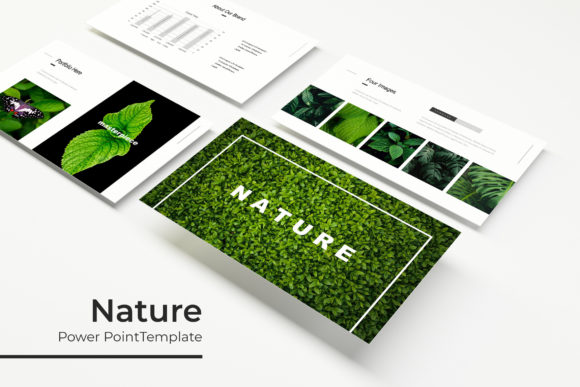
What you do not get are the photographs shown in the preview. That is an important detail that catches many people off guard. Those beautiful nature images are for illustration only. You will need to supply your own photos or source them separately.
The Biggest Mistake: Choosing a Template by Looks Alone
It is easy to fall in love with a preview. The Nature Power Point Template shows lush green landscapes, calm ocean blues, warm sunset tones, and crisp white layouts. But a template that looks stunning for one type of content may feel completely wrong for another.
For example, if you are presenting quarterly financial data, a template with heavy nature imagery and soft gradients may actually distract from your numbers. On the other hand, if you are pitching a conservation project or a wellness brand, those same visuals would reinforce your message perfectly.
How to avoid this mistake: Before you commit, map out the main slides you need. Ask yourself whether the template’s color variations and layout options support your specific content types — data charts, timelines, team bios, photo galleries, or text-heavy slides. The Nature Power Point Template excels with visual and storytelling presentations, but if your content is mostly dense text or complex tables, you may find yourself fighting the design.
Overlooking the Five Color Variations
One of the strongest features of this template is the five premade color variations. Each variation gives you 30 slides in a consistent palette. But many users make the mistake of picking one variation and never exploring the others, or worse, mixing elements from different variations in a single presentation.
Mixing color variations usually leads to visual inconsistency. One slide may have a warm orange accent while another uses cool blue tones, and suddenly your presentation looks like a patchwork project rather than a cohesive story.
Better approach: Choose one color variation that aligns with your brand or the emotional tone you want to set. Stick with it throughout the entire presentation. If you need a different color for a specific section, consider using a section break slide from the same variation to signal the shift. The five files are designed to be used independently, so treat each as a self-contained system.
Ignoring the Master Slides
Because this template is built on master slides, it gives you a powerful way to make global changes. If you decide to change the font, background color, or logo placement across all slides, you can do it from the master view. But many beginners never touch the master slides and end up editing each slide individually.
That approach wastes time and increases the chance of small inconsistencies — a logo that shifts a few pixels from one slide to the next, or a font size that varies between section headers. Audiences may not consciously notice those details, but they contribute to a sense of sloppiness.
Practical advice: Before you start editing individual slides, spend ten minutes understanding how the master slides work in PowerPoint. Open the slide master view, locate the different layouts, and make your global changes there. This single habit will save you hours and produce a much more professional result.
Underusing the Handcrafted Infographics
The Nature Power Point Template includes handcrafted infographics, which is a real time-saver if you need to present statistics, processes, or comparisons visually. Yet many users either leave these infographics untouched because they do not understand how to edit them, or they try to replace the data without adjusting the design.
A common mistake is dropping raw numbers into an infographic without considering the visual balance. If the infographic was designed for three data points and you try to squeeze in five, it will look cramped and confusing.
How to make the most of them: Use the infographics as they are intended — as visual summaries of key information. If you need to change the data, respect the original layout. Add or remove graphic elements carefully so the design stays clean. And remember that an infographic should support your spoken message, not replace it. Use them sparingly to highlight the most important numbers or steps.
Neglecting the Section Break and Portfolio Slides
Section break slides are one of the most underused features in any presentation template. They provide a visual pause between major parts of your talk, helping the audience mentally reset. The Nature Power Point Template includes dedicated section break slides in each color variation, but many presenters skip them or treat them as regular content slides.
Similarly, the gallery and portfolio slides are designed to showcase images in a clean, professional grid. If you fill them with low-resolution photos or overcrowd them with text, you lose the impact. These slides work best when the images are the star and the text is minimal.
Better approach: Use section break slides exactly where they belong — between major sections. On those slides, place only the section title and perhaps a single supporting image or icon. Let them breathe. For portfolio or gallery slides, use high-resolution images that align with the template’s visual standards. If your images are smaller or lower quality, consider using a different layout that hides those flaws.
What to Check Before You Download
Before you purchase or download the Nature Power Point Template, there are a few practical things to verify so you do not end up disappointed.
- Your PowerPoint version: The template comes in PPTX format, which works with PowerPoint 2007 and newer. If you are using an older version, or if you primarily use Keynote or Google Slides, test a sample file first. Some animations and master slide features may not transfer perfectly.
- Font licensing: The template includes a note about the fonts used and provides a free font download link. Make sure you install those fonts on your computer before you start editing. Using the wrong font substitution can break the entire design.
- Image placeholders: The drag-and-drop picture placeholders are convenient, but they expect images of a certain size and proportion. Check the placeholder dimensions and prepare your photos accordingly. A stretched or cropped image looks unprofessional.
- The ReadMe file: Do not skip it. The ReadMe file contains instructions for font installation, color palette usage, and any special notes about slide editing. It is there to help you avoid the exact mistakes this article is describing.
How to Use the Template for Different Audiences
Because the Nature Power Point Template targets such a broad audience — from entrepreneurs and marketers to educators and freelancers — the way you use it should vary based on who you are speaking to.
For business presentations, lean into the cleaner color variations. Choose a palette that feels professional and understated. Use the infographics to present market data or growth metrics, and rely on the master slides to keep your branding consistent.
For educational or workshop content, the section break slides become especially useful. They help you organize modules or chapters visually. The gallery slides can showcase student work, examples, or case studies.
For creative portfolios, the gallery and portfolio layouts are your best friend. Use them with high-quality images and minimal text. Let the design frame your work rather than compete with it.
For hobbyists or personal projects, feel free to experiment with all five color variations. Use the template to learn slide design principles — how spacing, color, and typography work together. The more you experiment, the more comfortable you will become with editing and customizing.
Final Thoughts on Making the Template Work for You
The Nature Power Point Template is a solid choice if you need a professional, nature-inspired design system that saves you time and keeps your slides consistent. But like any template, it is only as good as your willingness to learn how it works. The people who get the most value from it are those who take the time to understand master slides, choose a single color variation, and respect the intended use of each slide type.
Do not expect the template to do the work for you. Expect it to give you a strong starting point, clear structure, and thoughtful design elements. The rest — the content, the images, the delivery — is still yours to create. When you approach it with that mindset, the Nature Power Point Template becomes a genuine productivity boost rather than just another collection of slides gathering digital dust.