Mini Google Slide Template: Build Polished Presentations Faster Without Starting from Scratch
If you have ever sat down to create a presentation and found yourself staring at a blank slide, you already know how draining that moment can be. The cursor blinks. Your ideas are there, but the effort of designing each slide from zero often kills momentum before you even begin. This is exactly where a well-structured template can change your workflow. The Mini Google Slide Template is designed to give you a ready-made framework that lets you focus on your message rather than formatting. Whether you are preparing a client pitch, a classroom lesson, or a project update for your team, having a complete set of slides that are already color-coded, organized, and visually consistent saves you hours of repetitive work.
What the Mini Google Slide Template Offers in Practical Terms
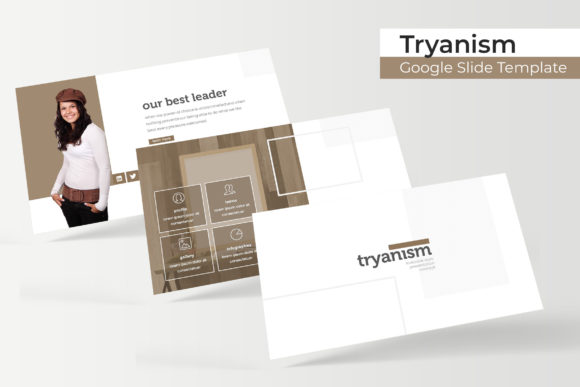
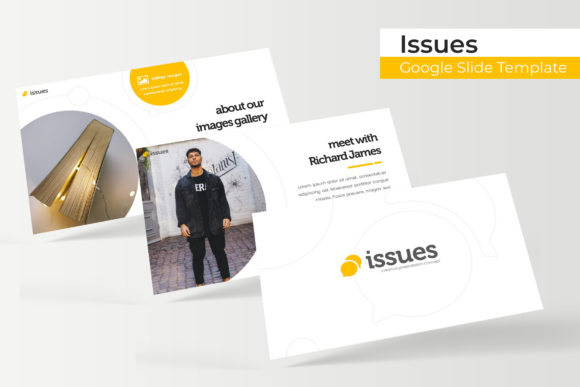
At its core, this template collection is a presentation toolkit that includes 150 total slides spread across five distinct color variations. Each color set contains 30 slides that are fully editable and built around master slides. That means every change you make to a master slide automatically updates all related slides, keeping your presentation cohesive without manual adjustments. The templates are provided in PPTX format, which means they work seamlessly with both Google Slides and Microsoft PowerPoint. You also get five separate PPTX files, one for each color scheme, so you can pick the palette that fits your brand or topic from the start.
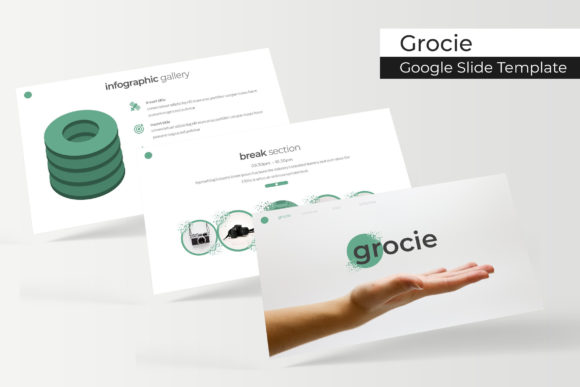
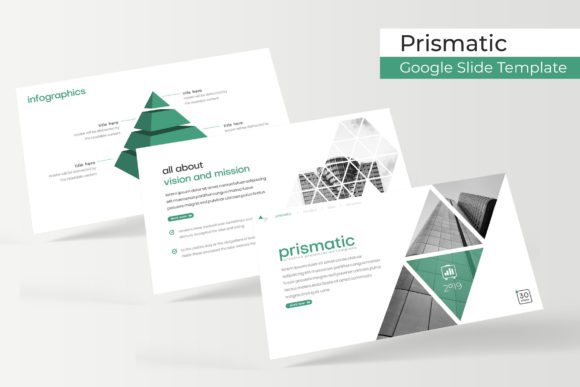
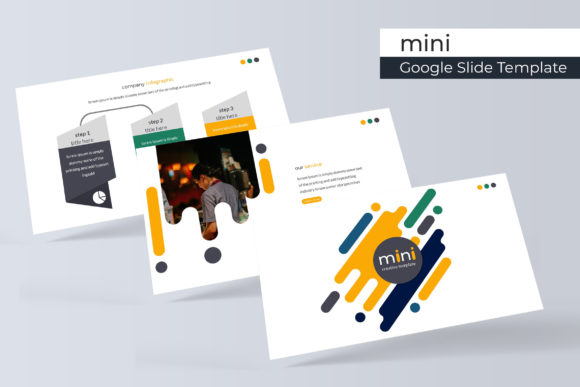
The real value, however, lies in the structure that comes built into each template. You will find handcrafted infographics, section break slides, dedicated gallery and portfolio slides, and resizable graphics with picture placeholders that accept drag-and-drop images. The illustrations are pixel-perfect, which means they remain crisp whether you view them on a laptop screen or project them onto a large display. Everything is designed to be resized and edited without losing quality, giving you flexibility to adapt each slide to your specific content.
The Common Frustrations That This Template Solves
Most professionals and educators run into the same set of problems when building presentations. The first is inconsistency. You might start with one layout for your title slide, switch to a bullet list for the next, and then realize your font sizes or color accents have drifted halfway through. The result looks disjointed and distracts from your message. The Mini Google Slide Template eliminates this because each color variation comes with a unified design language. All 30 slides within a color set follow the same typography, color palette, and spacing rules, so your presentation feels intentional from cover to closing slide.
Another common challenge is the time spent on formatting charts, timelines, or process flows. You know you need a visual to explain a concept, but building an infographic from scratch requires design skills you may not have time to develop. The handcrafted infographics included in this template give you a head start. They are designed to be edited with your own data, so you can replace placeholder text and numbers without worrying about alignment or visual hierarchy. The section break slides also help you organize longer presentations into clear chapters, which is especially useful when you are presenting complex information that needs to be digested in stages.
A third pain point is image handling. If you have ever struggled to crop a photo to fit a specific shape or had to manually resize images to match your slide layout, you know how tedious it can be. The picture placeholders in this template are designed for drag-and-drop functionality. You simply insert your image into the placeholder, and it automatically adjusts to the correct size and position. This small feature alone can save you several minutes per slide, and when you multiply that across 30 or more slides, the time savings become significant.
How Different Users Can Approach This Template
The way you use the Mini Google Slide Template will vary depending on your role and goals. A marketing professional, for instance, might prioritize the gallery and portfolio slides to showcase campaign results or client testimonials. The prebuilt layout for images and captions means you can drop in screenshots, case study highlights, or product photos and immediately have a polished portfolio page. You can also use the infographic slides to present survey data or growth metrics without needing to open a separate design tool.
An educator or trainer may find the section break slides especially useful. When you are teaching a multi-topic course or leading a full-day workshop, breaking your slides into distinct sections helps your audience follow along. A section break slide signals a shift in focus, giving learners a moment to reset their attention. The 30 slides per color variation also give you enough room to cover several modules within a single presentation, while keeping everything visually tied together.
For a business owner or entrepreneur, the five color variations let you tailor your presentation to different audiences without starting over. You might use a neutral blue theme for investor meetings, a warm orange for internal team updates, and a professional gray for client proposals. Having five premade colors ready to go means you can match the tone of your presentation to the context with minimal effort. The master slides also make it easy to insert your logo or brand colors consistently across all slides, so your presentation feels custom-made rather than generic.
Freelancers and designers can use the Mini Google Slide Template as a base for client projects. Since the graphics are pixel-perfect and fully resizable, you can adapt the template to match a client's brand guidelines without worrying about degradation in quality. The included PPTX files work with both Google Slides and PowerPoint, which is helpful when collaborating with clients who may use different platforms. You can also rely on the master slides to maintain consistency across revisions, which reduces back-and-forth edits.
Practical Outcomes and Realistic Recommendations
When you use this template, you should expect to spend your time on content rather than design. The structure is already in place, so your focus shifts to writing clear headlines, selecting the right images, and refining your data points. That said, the template is only as effective as the content you put into it. Take the time to replace all placeholder text with your own information, and choose images that genuinely support your message. The picture placeholders are convenient, but the photographs used in the preview are for illustration only and are not included, so you will need to supply your own visuals.
One practical recommendation is to start by reviewing all 30 slides in your chosen color variation before you begin editing. This gives you a clear picture of the layouts available, so you can plan your content around the slides that best suit your needs. For example, if you know you need to present a timeline, locate the infographic slide designed for that purpose early on. This upfront planning prevents you from later scrambling to find a slide that fits a specific piece of content.
Another useful consideration is to duplicate the template file before you start editing. Keep one unedited copy as a backup, so you can return to the original layout if needed. This is especially valuable if you are experimenting with different color schemes or content structures. The Readme First file included with the download provides guidance on fonts and setup, so review that document before you dive into editing. The free font download links are included, so you can install the recommended fonts for the best visual results.
Why This Approach Works for Busy Professionals
The main advantage of a structured template like this one is that it removes the guesswork from presentation design. You do not have to decide where to place a headline, how to size an image, or which colors look balanced. Those decisions have already been made and tested within each of the five color variations. This lets you produce a professional-looking presentation in a fraction of the time it would take to build one from scratch. For adults who are balancing multiple responsibilities, that efficiency is not just a nice-to-have. It is a practical way to deliver quality results without sacrificing your evenings or weekends.
Additionally, the 150 total slides across five colors give you room to grow. You may start with one color theme for a specific project and later reuse the template for a completely different topic by switching to another color variation. Since the slides are based on master slides, you can also customize elements like fonts, background colors, and accent hues to align with your brand, while still benefiting from the prebuilt layouts. This balance between structure and flexibility is what makes the Mini Google Slide Template suitable for ongoing use rather than a one-time fix.
Final Thoughts on Getting the Most Out of This Template
The Mini Google Slide Template is not a magic solution that writes your content for you, but it removes one of the biggest barriers to creating effective presentations: the time and effort required to design clean, consistent slides. By providing 150 slides across five color variations, handcrafted infographics, section breaks, and intuitive picture placeholders, it gives you a reliable foundation. Whether you are preparing a quarterly business review, a training session, or a creative portfolio, this template lets you focus on what matters most: communicating your ideas clearly.
Make sure to download the free fonts mentioned in the Readme First file, as the typefaces play a significant role in the overall look of your slides. And remember that the photographs in the preview are not included, so plan to use your own images or stock photos that align with your topic. With these considerations in mind, you can turn the Mini Google Slide Template into a practical tool that supports your work day after day, presentation after presentation.