Spocath Keynote Template: A Practical Tool for Clean, Flexible Presentations
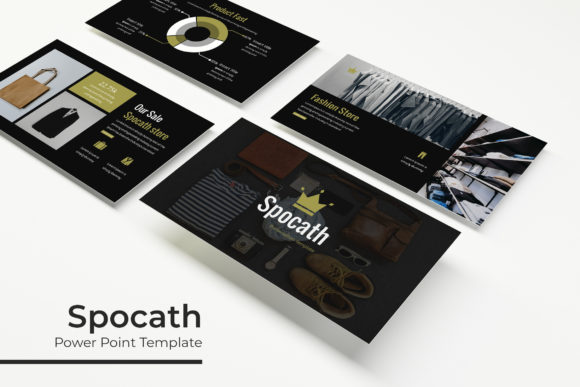
If you have ever found yourself staring at a blank slide, trying to figure out where to start, you already know how much time a strong template can save. The Spocath Keynote Template is built for people who need to put together presentations that look polished without spending hours tweaking layout details. It comes with 150 slides in total, split across five color variations, with 30 slides in each variation. That means you get five different visual directions in a single purchase, which is useful if you present to different audiences or want to keep your brand options open.
Where Spocath Fits Into Real Workflows
Most of us are not professional designers. We are business owners preparing a pitch, educators putting together course material, freelancers building a portfolio, or marketers crafting a campaign overview. The time you save by using a structured template like this one goes directly into the content itself. You get to focus on what you want to say instead of how to arrange it visually.
Spocath is particularly useful in three common scenarios. First, when you need to present to a client or investor and want to look prepared and professional. Second, when you are creating internal reports or team updates and need to keep things consistent across multiple presentations. Third, when you are building a portfolio or gallery to showcase your work online or in a meeting. Each of these situations demands a different tone, and having five premade color options gives you flexibility without starting from scratch.
Entrepreneurs and Small Business Owners
If you run a small business, you likely wear many hats. One day you are meeting a potential partner, the next you are presenting at a local event. With Spocath, you can pick the color variation that matches your brand or the mood of the presentation. The handcrafted infographics included in the template allow you to visualize data like revenue growth, customer demographics, or project timelines without needing to build charts from scratch. The section break slides help you structure longer presentations so your audience can follow along easily. This is especially helpful when you are presenting a multi-part proposal or a quarterly review.
Marketers and Content Creators
Marketers often need to create decks for campaign pitches, social media strategies, or content calendars. The gallery and portfolio slide options in Spocath let you showcase images, screenshots, or mockups in a clean layout. If you have ever tried to align images manually in Keynote, you know how frustrating it can be. The picture placeholders with drag-and-drop functionality make this process straightforward. You simply drop your image into the placeholder, and it resizes automatically. This feature alone saves a noticeable amount of time when you are working with multiple visuals.
Educators and Trainers
Teachers, trainers, and workshop facilitators need presentations that are clear and easy to navigate. The master slides in Spocath mean that any changes you make to the parent slide apply across the entire deck. If you decide to adjust the font size or move a logo, you do it once instead of editing each slide individually. This is especially useful when you are creating a semester-long course or a training module with dozens of slides. The consistency helps learners focus on the material rather than being distracted by shifting layouts.
Freelancers and Creatives
If you are a freelancer showcasing your work, your portfolio presentation needs to look clean and professional. The gallery slides in Spocath give you room to display your projects without clutter. You can use the resizable and editable graphics to customize icons, charts, or illustrations to match your personal brand. The pixel-perfect illustrations included in the template ensure that everything looks sharp on both standard and widescreen displays. Whether you are sending a PDF portfolio or presenting in person, the visual quality matters.
Bloggers and Publishers
Even if you are not doing traditional presentations, you might need to create media kits, sponsor decks, or pitch documents. Spocath works well for these purposes because it includes a variety of slide types that go beyond simple text. You can use the infographic slides to highlight blog statistics, audience demographics, or growth metrics. The premade color variations also make it easier to align with your blog's visual identity without having to manually adjust every element.
What You Should Consider Before Using Spocath
Before you download and start using the Spocath Keynote Template, there are a few practical things to keep in mind. The template works best for people who already have basic familiarity with Keynote. You do not need to be a power user, but understanding how master slides and placeholders work will help you take full advantage of the features.
The readme file included in the download provides setup instructions and information about the fonts used. The template uses a specific font that you will need to download separately, but a free download link is included. This is a small extra step, but it is important if you want your final presentation to look exactly like the preview.
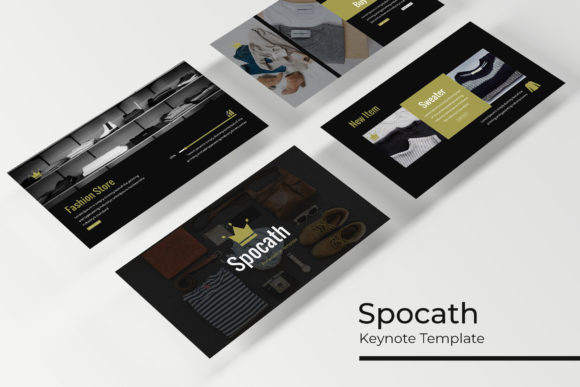
Speaking of previews, the photographs and images you see in the demo are not included in the purchase. They are there to show you what the layout looks like with content, but you will need to supply your own images. This is standard for most professional templates, but it is worth keeping in mind so you are not caught off guard.
The template comes as five separate PPTX files, each in widescreen format. If you need standard 4:3 slides, you may need to adjust the aspect ratio manually. Most modern projectors and screens handle widescreen well, but it is something to check ahead of time depending on where you plan to present.
Features That Translate Into Real Outcomes
Let me walk through a few specific features and why they matter in practice.
The handcrafted infographics are not just decorative. They give you a way to communicate data without overwhelming your audience. Instead of dumping numbers into a table, you can use a visual hierarchy that guides the eye. This is helpful in sales meetings, academic presentations, or any context where you want people to remember key points.
The section break slides serve a simple purpose: they signal a shift in topic. In a 30-slide deck, this keeps the audience engaged because they know when you are moving to a new area. It also helps you as the presenter stay organized. If you have ever lost your place in a long presentation, you will appreciate having clear visual markers.
The drag-and-drop picture placeholders remove the hassle of resizing and cropping images manually. For anyone who has struggled with stretched photos or misaligned graphics, this feature alone justifies the template. It is one of those small details that makes the entire process feel smoother.
The master slides allow for global edits. If you decide to change the background color or update the font midway through building your deck, you can do it without redoing each slide. This is especially valuable when you are working under a tight deadline and need to make last-minute adjustments.
The pixel-perfect illustrations ensure that your slides look crisp on any screen. Whether you are presenting on a large monitor, a projector, or sharing the file digitally, the visuals hold up. This matters more than people realize. A slightly blurry icon or misaligned graphic can make an otherwise strong presentation feel unprofessional.
When Spocath Makes Sense and When It Might Not
This template is a good fit if you need a large number of slides with consistent styling. The 150 slides across five colors give you room to experiment and reuse. If you frequently create presentations and want to maintain a consistent look without starting over each time, the investment in a template like this pays off quickly.
It may not be the best choice if you need highly specialized layouts that are not covered by the included slide types. For example, if you require complex diagrams or custom animations, you might need to supplement the template with your own work. Also, if you prefer to create everything from scratch for creative freedom, a structured template might feel restrictive. That is a matter of personal workflow.
For most everyday users, though, Spocath hits a sweet spot. It gives you enough variety to cover different presentation needs while keeping the editing process simple. You do not need to be a designer to get a professional result.
Practical Tips for Getting the Most Out of Spocath
Start by opening the readme file and downloading the recommended font. Using the correct font is one of the easiest ways to make your presentation look cohesive. Next, decide which of the five color variations fits your current project. If you are unsure, pick the one that aligns closest with your brand or the tone of your content. You can always adjust individual colors later if needed.
Use the master slides to set up your global styles before you start adding content. This way, any text formatting or layout choices you make will apply across the entire deck. It may take an extra five minutes upfront, but it saves time in the long run.
When adding images, take advantage of the drag-and-drop placeholders. This feature is straightforward but powerful. Make sure your images are high resolution so they look sharp in the placeholders. Low-quality images will stand out more when placed in a clean layout.
If you are creating a portfolio or gallery, use the dedicated slides to showcase your work. Arrange your best pieces first and keep the layout consistent. The gallery slides are designed to let the visuals speak, so avoid adding too much text. Let the images do the work.
For longer presentations, make sure to use the section break slides to divide your content into logical chunks. This gives your audience natural pause points and helps you stay on track. You can also use these slides to recap or transition between topics.
Finally, export your presentation in the format that matches your delivery method. If you are presenting in person, widescreen PPTX works well. If you are sharing digitally, consider exporting as PDF to preserve the layout. The template is designed to look good in both formats.
Who Will Find the Most Value
The Spocath Keynote Template is not a one-size-fits-all solution, but it covers a wide range of real-world needs. Small business owners will appreciate the infographics and section breaks for pitches and reports. Marketers will value the gallery slides and drag-and-drop images for campaign decks. Educators will benefit from the master slides and consistent layouts for course materials. Freelancers and creatives can use the portfolio slides to present their work in a clean, professional way. Bloggers and publishers can adapt it for media kits and sponsor decks.
Even if you only use a fraction of the 150 slides, having the options available when you need them is a practical advantage. The five color variations also mean you are not locked into one look. You can switch between them depending on the project or audience.
Templates like this one work best when you treat them as a starting point rather than a finished product. The structure and design elements are there to support your content, not replace it. If you put in the effort to tailor the slides to your specific message, the result will look like a custom-built presentation.
Spocath is a tool that removes friction from the presentation process. For anyone who regularly creates slides and wants to spend less time on formatting and more time on content, it is worth considering. The mix of infographics, gallery options, section breaks, and master slides covers the most common presentation needs without unnecessary complexity. That is a practical benefit for a wide range of users.