Moirs Power Point Template: 150 Slides for Bold Presentations
Building a presentation that holds attention and communicates clearly takes more than good intentions. You need structure, visual consistency, and enough flexibility to adapt to different audiences. Moirs Power Point Template offers exactly that: a complete system of 150 slides across five color variations, designed for professionals who want to move fast without sacrificing quality. Whether you are pitching a project, teaching a class, or showcasing a portfolio, having these assets ready means you can focus on your message rather than starting from scratch every time.
What Makes Moirs Power Point Template Different
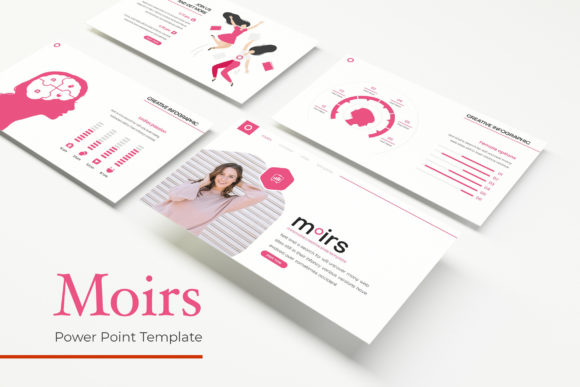
At its core, this template provides 30 slides for each of five premade color schemes, giving you 150 total slides to work with. Each color variation is a fully standalone template, so you can pick the palette that fits your brand or topic without mixing mismatched styles. The handcrafted infographics are a standout feature—they are not generic shapes thrown together but carefully designed graphics that save you hours of manual diagram-building. You also get section break slides, gallery and portfolio layouts, and picture placeholders that let you drag and drop images directly into place. Everything is based on master slides, meaning changes you make to the master propagate across all slides, keeping your presentation consistent with minimal effort. The pixel-perfect illustrations add polish, and because all graphics are resizable and editable, you retain full control over the final look.
What makes this setup especially useful is that you receive five separate PPTX files, each in widescreen format, plus a fonts guide with a free download link. The photographs in the preview are not included, but the template is designed to work with your own images, so the placeholders are ready for your content. For anyone who has spent hours tweaking alignment or hunting for the right icon, this kind of out-of-the-box completeness is a genuine time-saver.
Creative Possibilities Across Different Fields
One template rarely fits every use case, but Moirs Power Point Template comes close because of its modular structure. Designers working on client proposals can use the gallery and portfolio slides to present work samples cleanly, while the section break slides help carve the presentation into digestible chapters. Marketers pitching a campaign strategy will appreciate the infographic slides for laying out data without cluttering the screen. Bloggers and content creators preparing webinar slides or video presentations can pull from the same set of layouts to maintain a cohesive visual identity across multiple assets. Educators and trainers can adapt the template for lesson modules, using the consistent color coding to help students follow along with different topics. Small business owners juggling limited resources will find the drag-and-drop picture placeholders especially practical—no need to learn advanced design software to produce professional-looking slides.
The key is that each color variation is complete on its own, so you are not forced into a single look. If you are presenting to a conservative boardroom, you can use the more subdued colorway. For a creative workshop or a product launch aimed at a younger audience, a brighter palette might serve you better. Having five options means you can match the tone of your content without reworking the entire deck from scratch.
Adapting the Template for Different Formats and Platforms
Presentations today live in many places: live meetings, recorded videos, PDF exports, even social media carousels. Moirs Power Point Template is built for widescreen, which is the standard for most screens and projectors. But you can also repurpose slides for other formats. Export individual slides as high-resolution images for Instagram or LinkedIn posts. Use the infographic slides as standalone visuals for blog posts or email newsletters. The resizable graphics mean you can scale elements down without losing clarity, which is essential when your presentation ends up on a phone screen. The master slides structure also makes it easy to swap out entire color schemes later, so if your brand guidelines change or you are creating a series of presentations for different clients, you are not locked into one design.
For freelancers and publishers who produce multiple decks per month, the time savings compound quickly. Instead of rebuilding navigation slides, section headers, and portfolio pages each time, you customize one master and then duplicate, replace images, and update text. The drag-and-drop placeholders guide you to the right image size, so you avoid the frustration of stretched or cropped pictures. This kind of consistency also builds trust with your audience—when slides look professional and uniform, viewers can focus on the content rather than being distracted by jarring design shifts.
Practical Tips for Keeping Presentations Clear and Organized
Even with a strong template, clarity depends on how you use it. Start by choosing one color variation and stick with it throughout the entire deck. The five premade colors are balanced, so you do not need to worry about clashing hues. Use the section break slides to divide your content into three to five main parts—this helps your audience follow the narrative arc. When placing images, make use of the picture placeholders rather than cropping manually; the placeholders are sized proportionally, so your visuals stay sharp. Keep text concise on infographic slides: the handcrafted graphics are already doing the heavy lifting of explaining relationships and data, so let them breathe by limiting on-slide text to key takeaways. If you need to add your own diagrams, the editable graphics let you modify colors and shapes without breaking the design.
Another practical move is to customize the master slide early. Change the default font to your brand typeface using the free font included with the download link. Adjust the accent colors if needed, but resist the urge to overhaul the palette completely—the premade options have been tested for readability and contrast. Once your master is set, all subsequent slides will follow, reducing the chance of inconsistency. For portfolio slides, place your best work in the spotlight positions and use the gallery layouts to show multiple pieces without overcrowding. If you are presenting to a client or stakeholder, the clean grid layouts convey professionalism and attention to detail.
Realistic Examples and Project Ideas
Imagine you are a freelance designer pitching a branding package to a potential client. You can open with the section break slide announcing the proposal, then move into portfolio slides showing past logo and identity work. Use an infographic slide to outline your process: research, concept development, refinement, delivery. A gallery slide can display mood board examples, and you close with a clean contact slide. The entire deck stays in one cohesive color scheme, making you look organized and prepared. The client does not need to see the template—they just see a polished, professional presentation.
For an educator preparing a lecture series on digital marketing, Moirs Power Point Template can structure each module consistently. Section break slides introduce new topics like SEO, social media, and email campaigns. Infographic slides illustrate funnel models or analytics reports. Gallery slides can show case studies or student project examples. Because the template is modular, you can reuse the same deck for multiple semesters, swapping out case studies and updating data without redesigning the layout.
Small business owners who host monthly team meetings can also benefit. Use the template to create a recurring meeting deck with sections for wins, challenges, goals, and next steps. The picture placeholders work well for team photos or product shots. Over time, the visual consistency reinforces company culture and makes meetings feel more structured. The five color variations let you rotate themes for different seasons or campaigns—perhaps a calm blue for quarterly reviews and a warmer tone for kickoff events.
Keeping Results Audience-Friendly
No matter how good the template is, the final presentation should serve the audience first. Avoid overloading slides with text just because you have space. Use the infographics to explain complex ideas visually, and reserve slides for one main point each. The section break slides are your friend—they give people a mental reset and signal that a new topic is beginning. If you are presenting live, keep slides minimal and use the speaker notes for details. If you are sharing the deck as a PDF, you can include more explanatory text, but maintain the same visual hierarchy. The premade color schemes are designed for readability, so trust them to do the work. Drag and drop your images, edit the graphics to match your data, and let the template handle the rest.
Moirs Power Point Template works best when you treat it as a foundation rather than a finished product. The 150 slides give you room to explore different formats—from dense data presentations to visual portfolios—without needing a new design system each time. For creators, designers, marketers, and educators who produce presentations regularly, having this resource on hand means you can spend your energy on the story you are telling, not on positioning shapes on a slide. The result is a presentation that looks intentional, reads clearly, and leaves a lasting impression.